
Cook on a HomeView display
From This Week’s Plan to Your Kitchen Counter
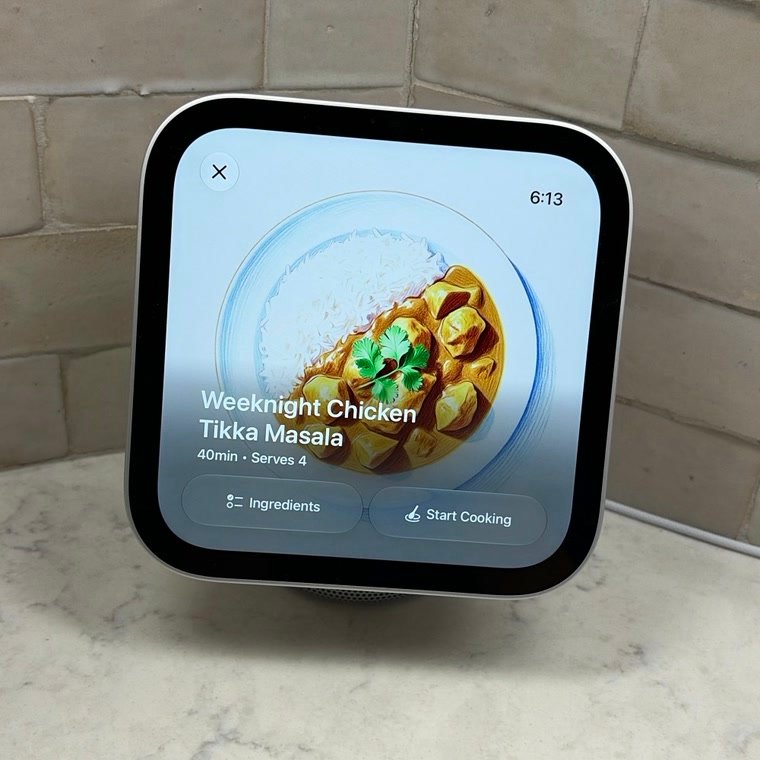
Plan the week in It’s Dinnertime, then send tonight’s recipe to the HomeView display on your counter and cook it step by step, with the picture of the dish, the ingredients and every step.
To show a recipe on a HomeView display, open it in It’s Dinnertime, tap the menu, choose Show on HomeView, then Open the page. On the display, open Safari, tap the tab button left of the address, pick the recipe under your iPhone, tap the round recipe button, then Start Cooking.
It’s free for everyone, on iPhone.
How It Works
-
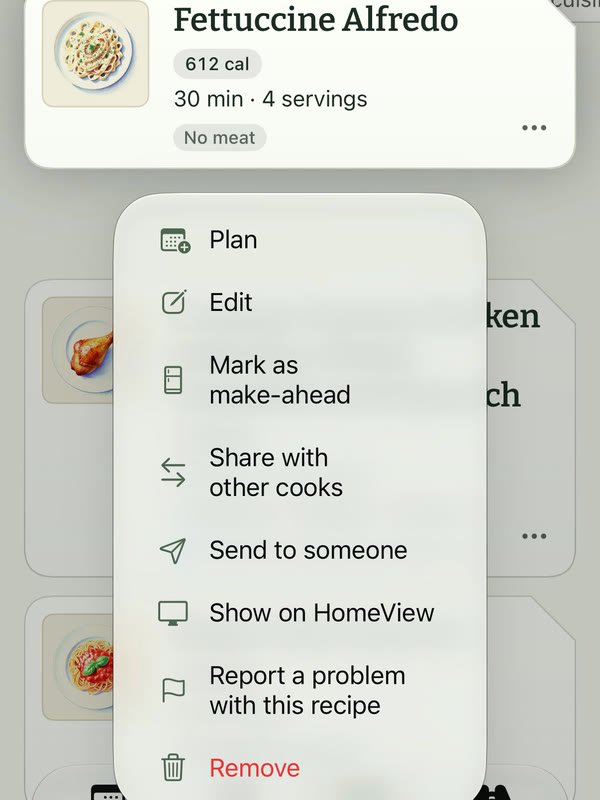
Open the recipe’s menu. On the cook screen, tap the recipe menu. In Saved, press and hold the recipe. Then choose Show on HomeView.
-
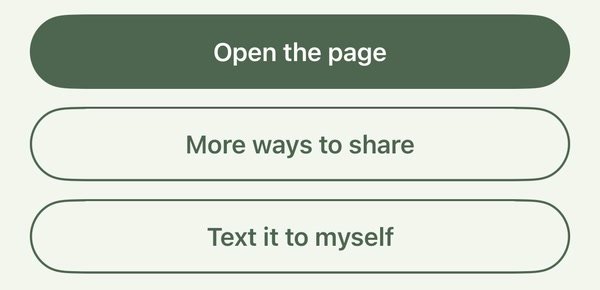
Tap Open the page. The sheet sums up what happens next. Tap Open the page.
The buttons at the bottom of the sheet.
-
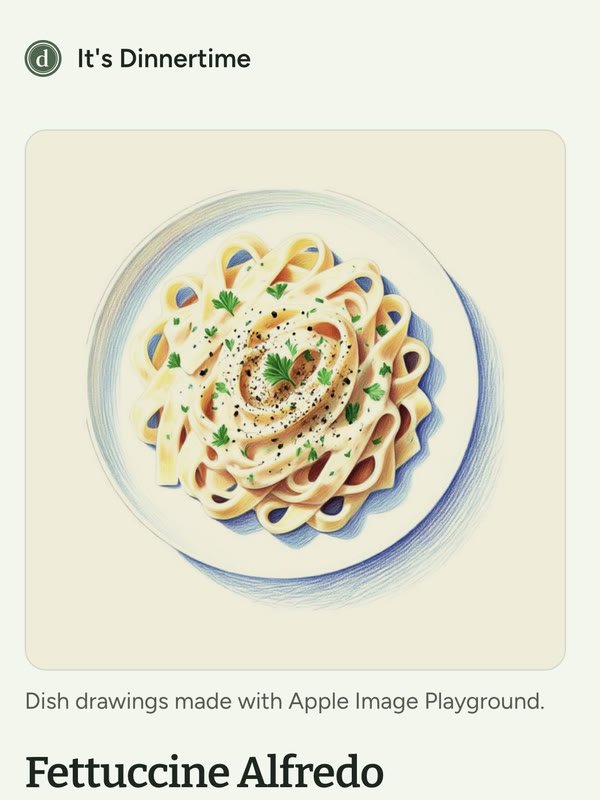
Leave the page open. The recipe opens as a page in Safari on your iPhone. That open page is what the display picks up.
Our recipe page, shown without the browser around it.
-
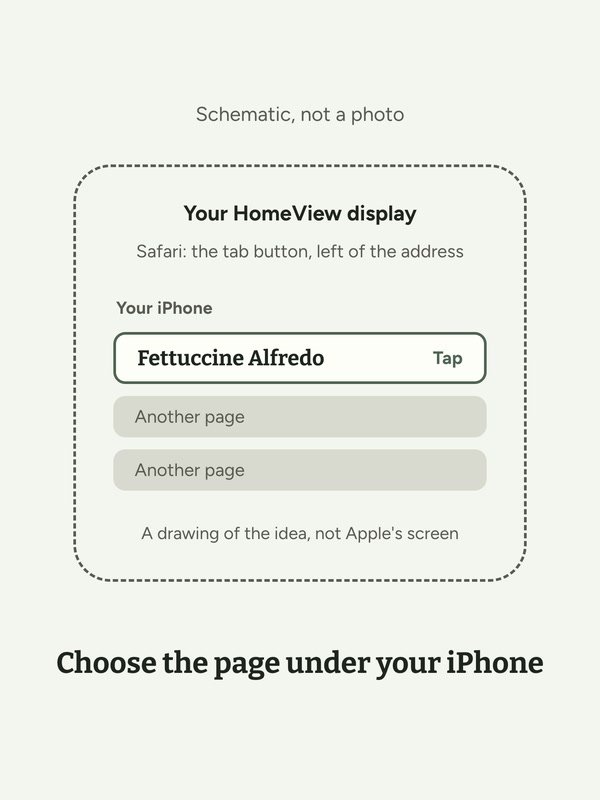
Pick the page on the display. On the HomeView display, open Safari and tap the tab button left of the address. The pages open on your iPhone are listed under your iPhone (Apple calls this iCloud Tabs). Tap the recipe.
A drawing of the idea, not a photo of the display. A photo is coming.
-
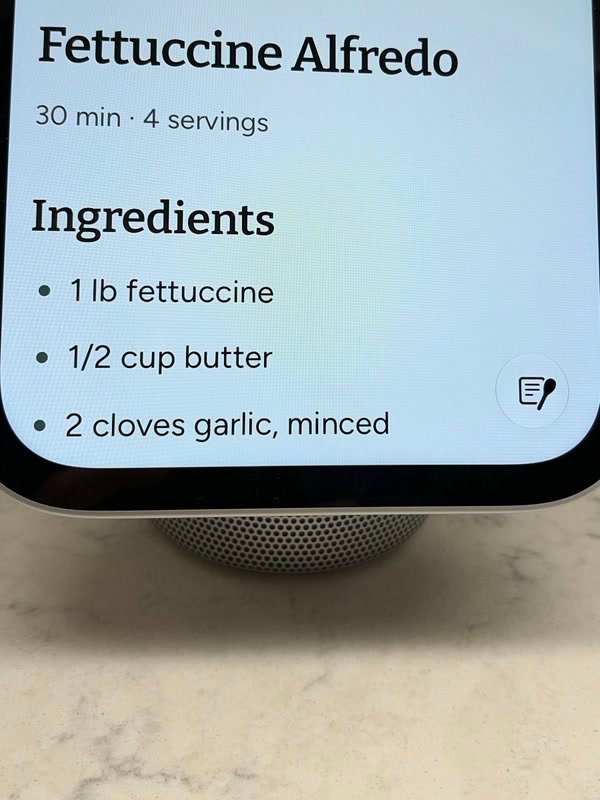
Tap the round recipe button. The recipe shows as a page on the display. Tap the round recipe button in the corner of the page.
-
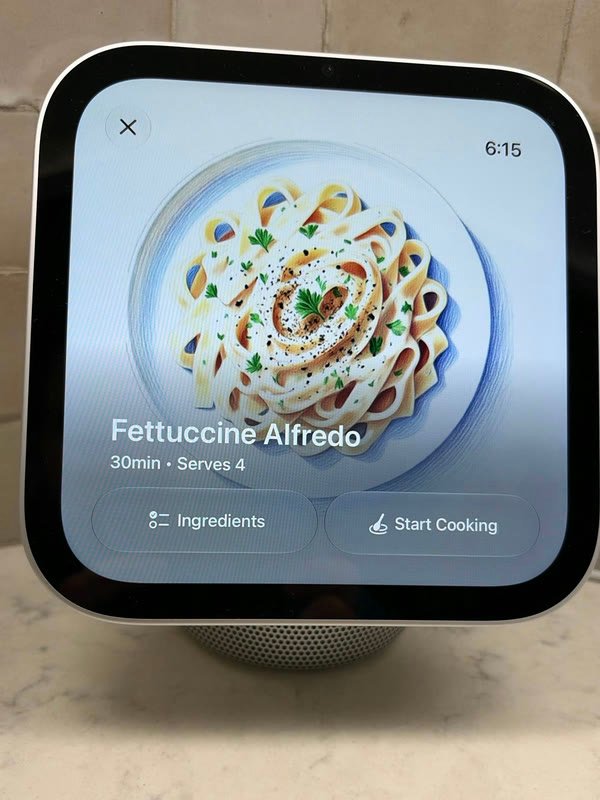
Tap Start Cooking. The display shows the dish, the time and the servings. Start Cooking walks you through it one step at a time.
Not showing up? On the Show on HomeView sheet, tap Text it to myself, then open the message on the HomeView display.
Tonight’s Dinner, Already on the Display Free
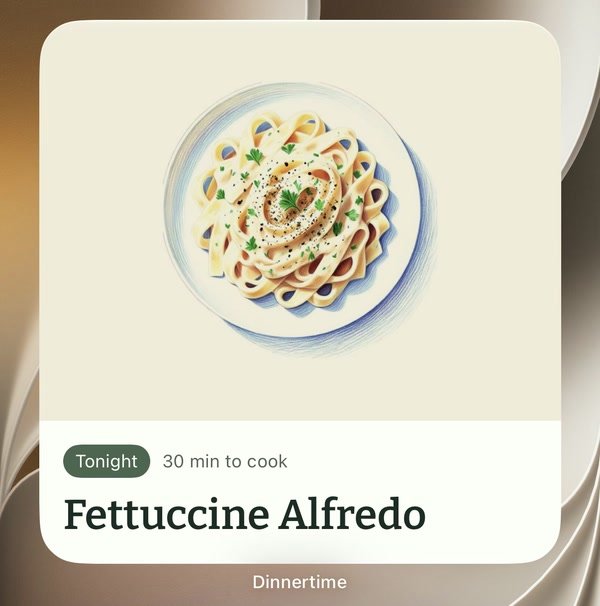
The Tonight widget works on a HomeView display too. It shows tonight’s dinner from your plan, with its picture and how long it takes, so the counter already knows what’s for dinner before anyone opens anything.
When you’re ready to cook, send the recipe over with Show on HomeView.
Recipes That Live in Your App
It works with the recipes you saved from a link, and with the ones that only live in your app, like recipes you typed or scanned from a cookbook. A recipe someone sent you works too.
A recipe needs at least one ingredient and one step, or the menu does not offer Show on HomeView. A very long recipe is too long for a link, and the app tells you so.
A recipe you saved from a website and never changed opens the creator’s own page instead, so they get the visit. Many recipe sites offer Start Cooking there as well, and it depends on the site.
The picture comes along: our drawing of the dish, or the photo for a recipe from our recipe library. Your own photos and sketches stay on your phone.
What You Need
- A HomeView display signed in to the same Apple Account as your iPhone.
- Safari as your iPhone’s browser, so the page shows up on the display. If you use another browser, tap Text it to myself instead.
- Safari turned on in iCloud on your iPhone, so the pages you have open show up on the display.
- It’s Dinnertime on your iPhone, updated to the latest version. Nothing to set up, and no account with us.
- You don’t need a HomeView display to use It’s Dinnertime. It’s one more place to cook from.
Your Recipe Stays in the Link
The recipe travels inside the link, after the # mark. Browsers never send that part to a website, so when the page opens, our site gets an ordinary page request with no recipe in it. The recipe page counts nothing: no analytics, no cookies.
The link goes where you send it, including to your other Apple devices through your iPhone’s tabs. The picture loads from our site for one of our drawings, or from TheMealDB for one of their recipes, and its address names the dish.
Your notes, ratings, allergies, household and your own photos never go in the link.
Questions
Do I need a HomeView display to use It’s Dinnertime?
No. Everything in the app works on your iPhone and iPad. If you have a HomeView display, this is one more place to cook from.
Does it cost anything?
No. Show on HomeView is free for everyone, with or without Pro.
What goes in the link?
The dish name, the time, the servings, the ingredients, the steps, which picture to show, a credit line and, if the recipe came from a website, its address. Nothing about you or your family.
Does your website see my recipe?
Not the recipe itself. The recipe sits after the # mark in the link, and browsers never send that part. Our site sees an ordinary page request and, when the picture is one of our drawings, a request for that picture, whose name says what the dish is.
Can I send a recipe to someone else?
Yes. Tap More ways to share on the same sheet. Anyone you send it to can read the recipe in a web browser, with or without the app.
It didn’t show up on my HomeView display. What now?
Check that the display and your iPhone use the same Apple Account, that Safari is your iPhone’s browser, and that Safari is on in iCloud on your iPhone. If you use another browser, or it still doesn’t show, tap Text it to myself and open the message on the display. A very long recipe can be too long for a link, and the app tells you when that happens.
Will every recipe get Start Cooking?
The cooking view belongs to the display, and it decides which pages it opens. Our recipe pages are built for it. The recipes we tried opened, and a few may not.
Is It’s Dinnertime made by Apple?
No. It’s Dinnertime is made by Smart Home Life LLC, a small family business. HomeView is a trademark of Apple Inc., and It’s Dinnertime is not affiliated with or endorsed by Apple.