
User Guide
User Guide
Save recipes, plan the week, shop the list, cook along. Most of it is free, and the parts that need Pro are marked.
The app has four tabs along the bottom: This Week, Groceries, Recipes and Discover. Settings is the gear at the top right of This Week and Groceries. The Where lines below start from these.
It’s Dinnertime is in public beta. Pro features are free during the beta.
Tags: Free works for everyone. Pro needs Dinnertime Pro, and you still see what it does first.
How It Fits Together
- Save RecipesPaste a link, scan a cookbook page or bring them over. They live in Recipes.
- Plan the WeekPick dinners for the nights you cook. This Week holds the plan.
- Shop the ListAdd the week’s ingredients to your grocery list. It is a Reminders list you choose, and Groceries shows it.
- Cook AlongBig steps one at a time, hands-free if you like.
Get Started
Set It Up the First Time Free
Pick your colors and your heading style, then choose whether to share the week with someone. You can change all of it later in Settings.
Where: The pages you see when you first open the app. To see them again: Settings › Help and Legal › Show the welcome again.
Pick Your Store Free
Choose Kroger, Walmart or both, then pick the store nearest you. Dinnertime remembers it. You do not need a store to plan, shop or cook.
Where: The store step in setup, or Groceries when you first ask for a store.
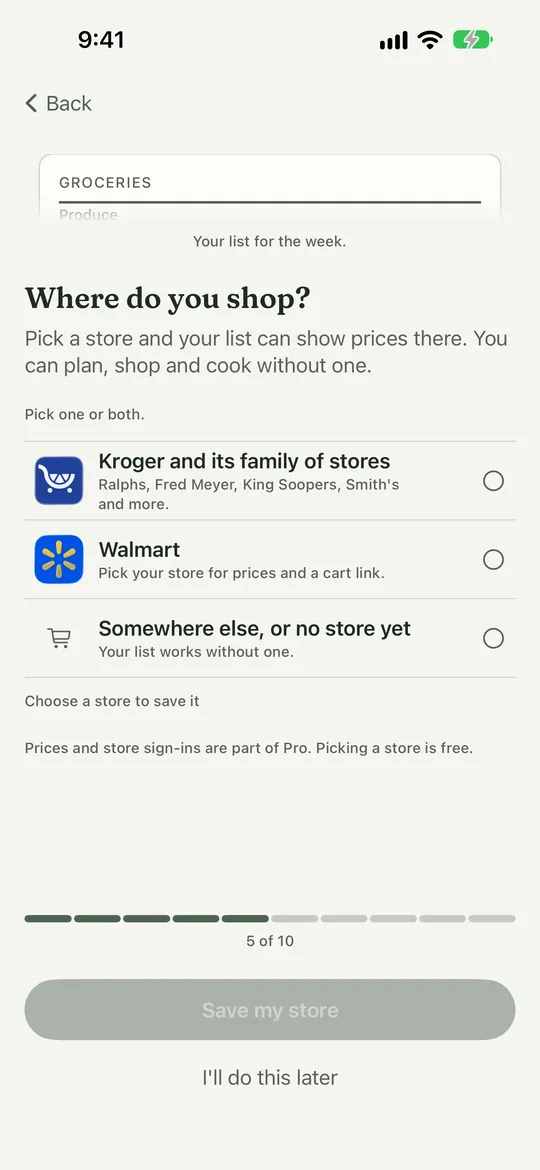
- Pick Kroger, Walmart or both.
- Tap Save my store. Dinnertime remembers it.
Fill Your Library Free
An empty Recipes tab fills up three ways. Use one or all of them.
Start With Recipes We Picked
Not sure where to start? Browse a library of dinners and save any you like. They become your own saved recipes.
Where: Recipes › + › Browse recipes
Bring Recipes Over From Paprika
Export your recipes from Paprika, then choose the file here. Ratings and notes come across with them. You can also bring in a Dinnertime export the same way.
Where: Settings › Recipes and Lists › Bring in recipes
Save From a Link
Found a recipe online? Paste its link and Dinnertime reads the page and saves it. Save a Recipe From a Link has the steps.
Where: Recipes › + › Add a recipe
Tell Us What Is Broken
In TestFlight you can also screenshot a screen and send feedback from there. A real person reads every note.
Where: Settings › Help and Legal › Report a bug, or Suggest an idea
Save Recipes
Save a Recipe From a Link Free
Paste a link from a recipe site, YouTube, Pinterest or Facebook and tap Add to your recipes. Dinnertime reads the page and saves the ingredients and steps.
Where: Recipes › + › Add a recipe
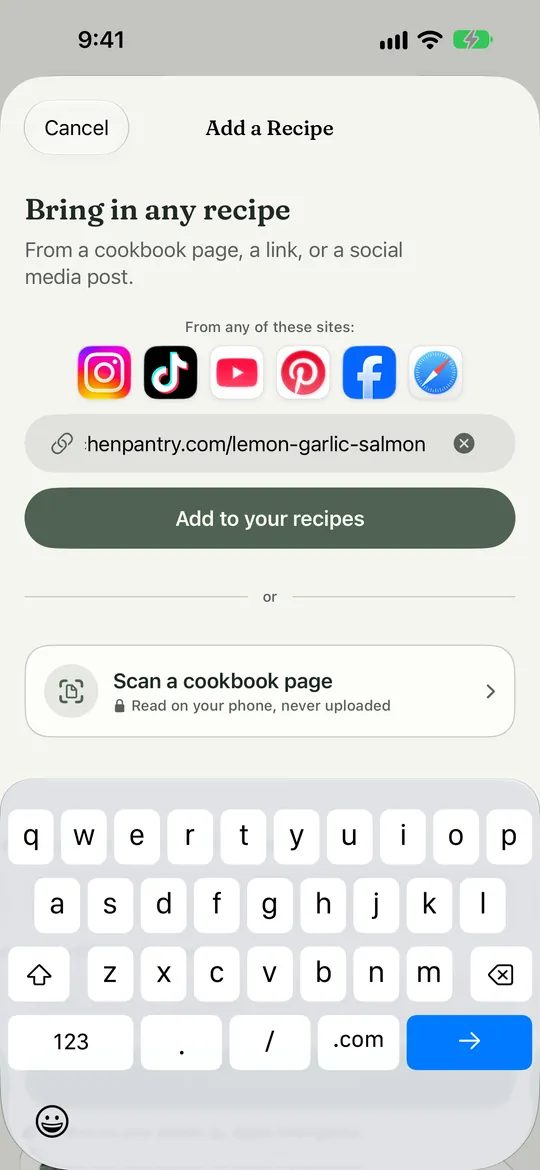
- Paste the link.
- Tap Add to your recipes.
When a Video Has No Recipe Free
Some videos do not put the recipe in the caption. Many creators send it when you comment on the post, often with a word like RECIPE. Open the link they send, tap Share, and choose It’s Dinnertime. You can also tap I have the recipe link and paste it, tap Make a recipe for the dish, or tap Save the video only and fill it in yourself.
Where: The screen that opens after you paste the video link
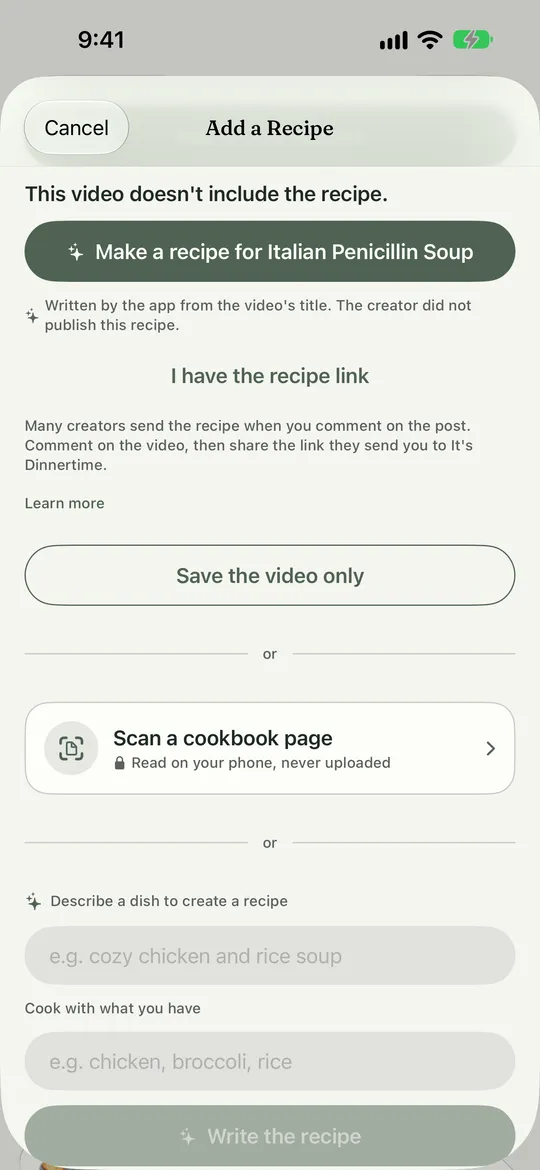
- Let Dinnertime write one for the dish.
- Paste the link the creator sent you.
- Keep the video and fill the recipe in yourself.
Write a Recipe, or Let Dinnertime Write One Free
Type one in by hand, describe a dish and let it write the recipe, or list what is in your kitchen under Cook with what you have. Apple’s built-in models do the writing.
Where: Recipes › + › Add a recipe
Find a Recipe Fast Free
Search by name, ingredient, note or source. Filter by cuisine, rating, total time or where it came from, and sort by A to Z, quickest first or not made in a while.
Where: Recipes, then the search and Sort and filter controls
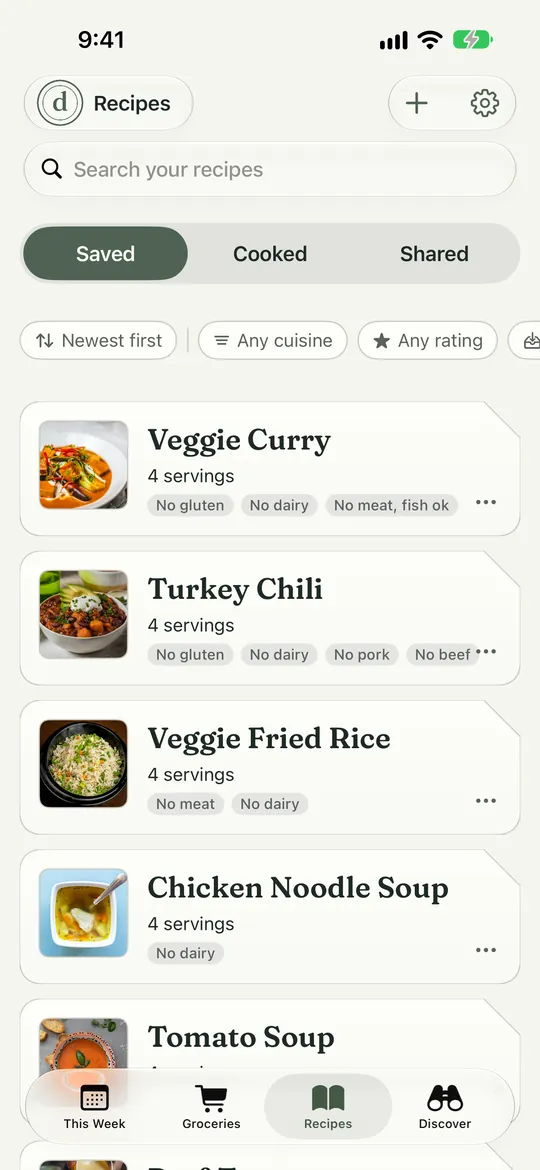
- Search by name, ingredient, note or source.
- Open Sort and filter to narrow the list.
Shared Recipes Free
Read dinners other cooks shared and save the ones you want. You can post one of yours without your name on it. Report anything that is not a recipe.
Where: Recipes › Shared
Plan Your Week
Plan the Week Free
Tap it and Dinnertime fills your dinners for the week. Planning runs on your phone or in Apple’s private cloud, so nobody can read your request.
Where: This Week › Plan a new week
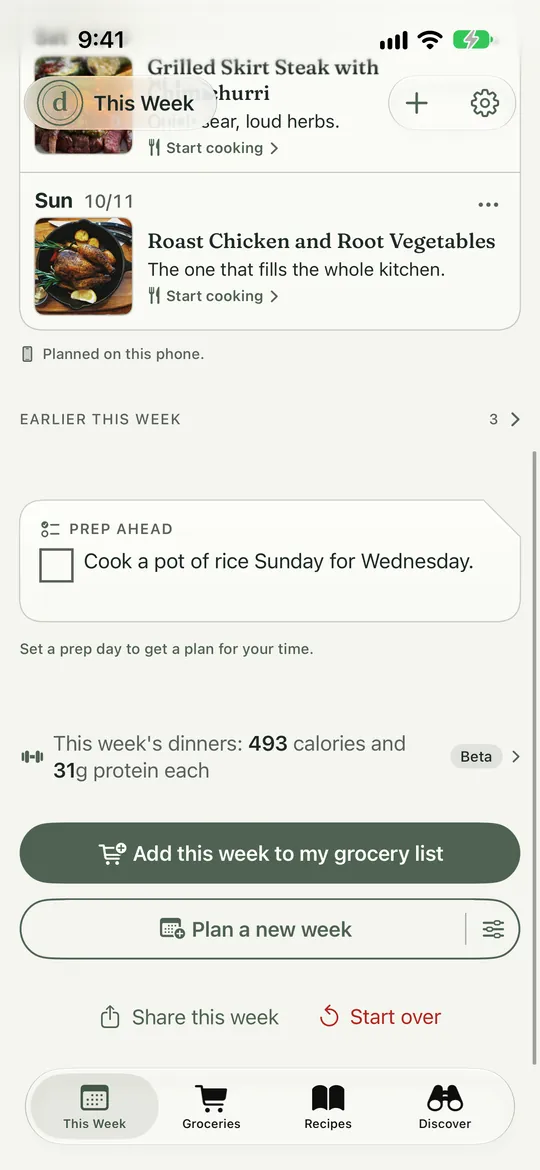
- Tap Plan a new week.
- Choose where dinners come from, and how many.
Choose How to Plan Free
Pick where dinners come from: My recipes, Half mine and half new, or All new. Then set how many dinners, how many adults and children, and your weeknight time.
Where: This Week › Choose how to plan
Planning With Claude Pro
Claude plans the week with nothing to set up, and no account or key. Pick Claude in Choose how to plan, then plan as usual. You get up to 30 week plans a month, and a count shows only when five are left. Your week’s details go through our server to Anthropic, which doesn’t train on them.
Where: This Week › Choose how to plan › Where it runs › Claude
Choose Who Plans Free
Apple’s planner runs on your phone or in Apple’s private cloud. Claude, or your own Claude, ChatGPT or Gemini account, are the other choices, and each says where your week goes. See the planners side by side.
Where: This Week › Choose how to plan › Where it runs
Pick a Recipe for One Night Free
Choose from your saved recipes for any night. It works without a plan and without a household.
Where: This Week › an open night › Pick a recipe, or ••• › Pick a different recipe
Show Your Calendar on Each Night Free
Turn it on and each night shows what is on your calendar. Your calendar stays on your phone.
Where: Settings › How We Plan › Look at my calendar
Plan Around My Calendar Pro
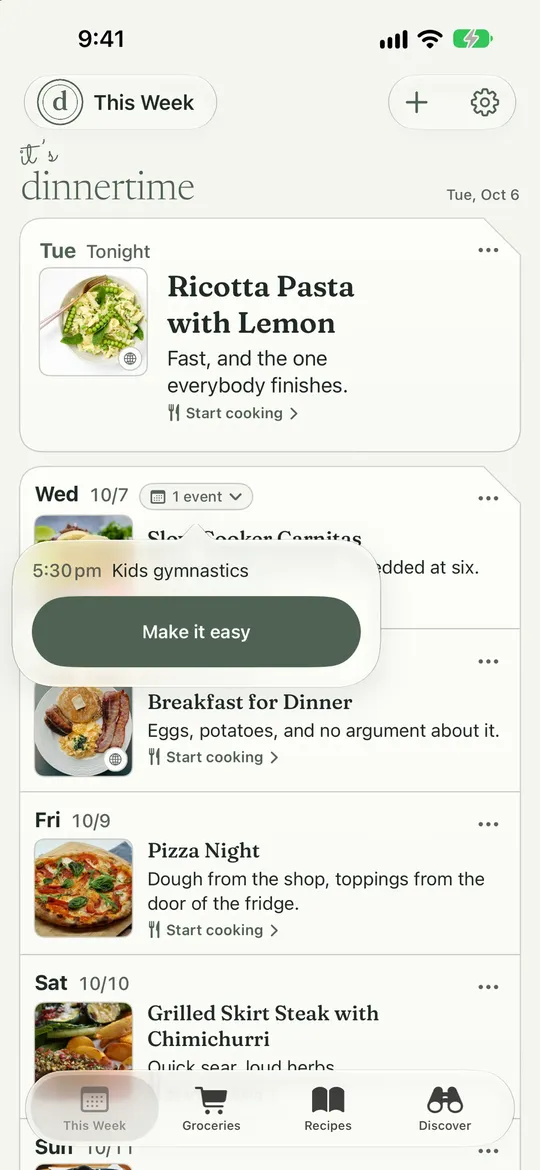
Dinnertime is told which evenings are busy, never what is on them, and puts quicker dinners there. On a busy night with a long recipe you may see a note and a button to swap for something quicker.
Where: This Week › Choose how to plan › Plan around my calendar
Make It Easy Free
Opens Easy Night. Pick something quick, or skip cooking.
Where: A busy night’s events chip › Make it easy, or ••• › Make it easy
Who’s Cooking Free
In a household of two or more, open a dinner’s menu, tap Who’s cooking?, and pick a person, or Not set. The dinner then says who is cooking, and the person you pick gets a note if they have When someone asks you to cook turned on.
Where: This Week › a dinner › ••• › Who’s cooking?
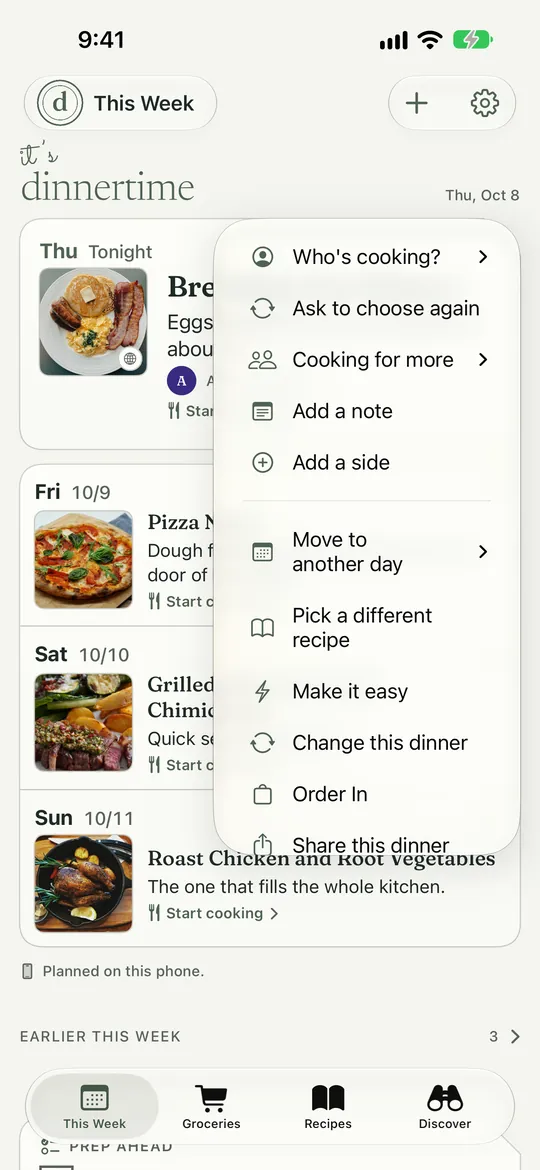
- Tap ••• on the dinner.
- Tap Who's cooking?, then pick a person or Not set.
Takeout and Order In Free
Mark a night as Takeout so nothing needs cooking. Order in opens DoorDash, Uber Eats, Grubhub or Instacart with the dish name filled in. You order in their app. Dinnertime does not place the order.
Where: Make it easy › Takeout, or Make it easy › Order in. Also ••• › Order in on any dinner.
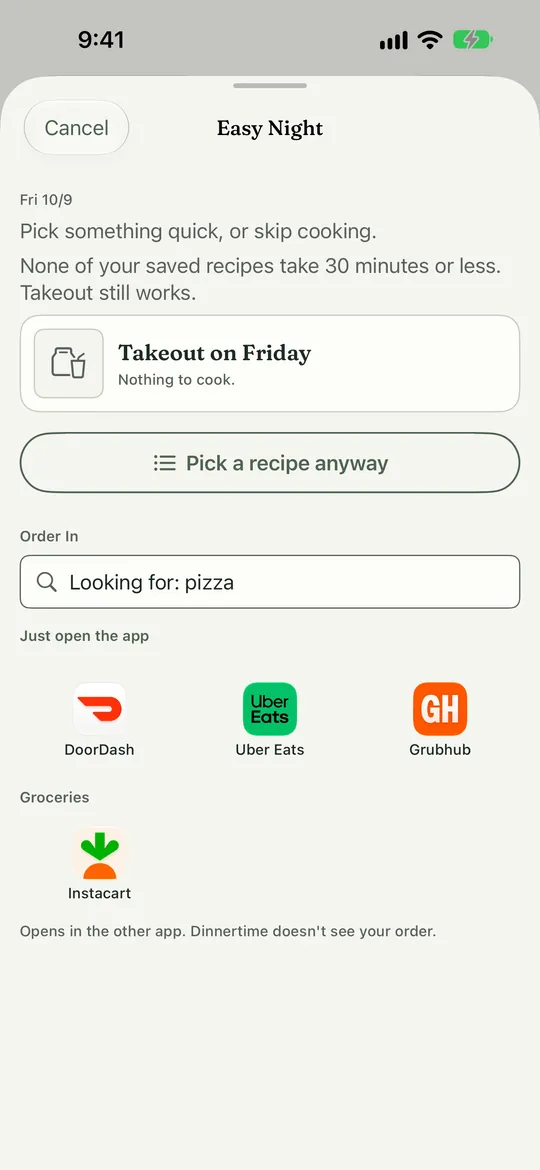
- Takeout marks the night so nothing needs cooking.
- Order in opens a delivery app with the dish name filled in.
Prep Ahead Free
The plan suggests small jobs to do before the week starts, like chopping or cooking a base.
Where: The Prep ahead notes at the foot of This Week
Prep Day Free
Choose your prep day and how many hands-on hours you have. Dinnertime merges the week’s jobs into one short plan and can remind you on that day.
Where: Settings › How We Plan › Prep Day. Then open Prep Day from the This Week card.
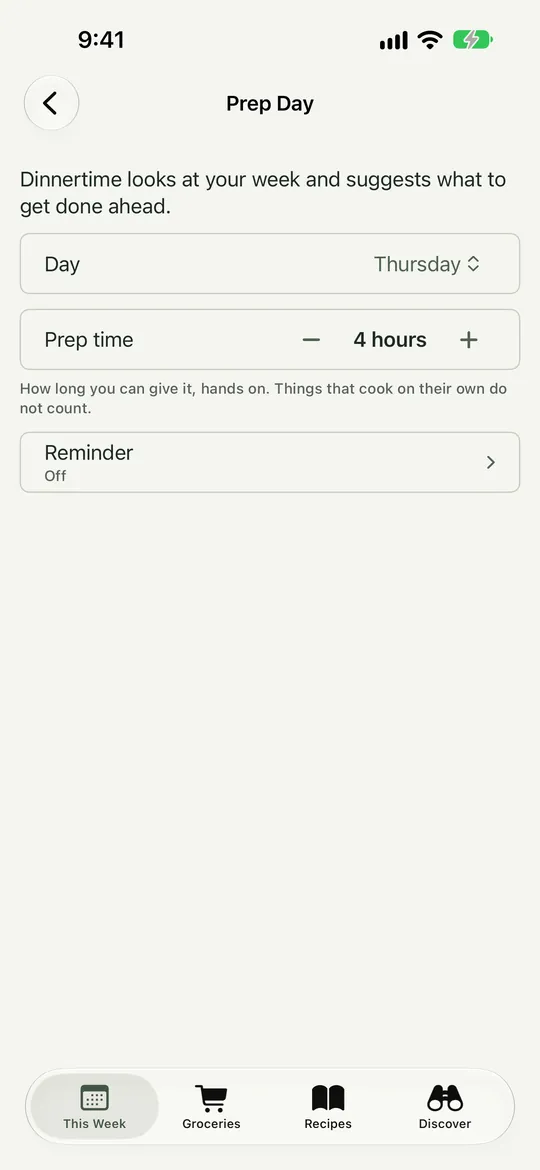
- Choose your prep day.
- Set how many hands-on hours you have.
- Switch on a reminder for that day.
What You Do Not Eat Free
Tell Dinnertime what your household avoids. Planning steers around it. Allergens lets you pick from eight common ones, and Dinnertime flags a recipe when it finds one in the ingredients. It can never promise a dish is free of an allergen, so check the label when it matters for health.
Where: Settings › How We Plan › Dietary Preferences, and Allergens
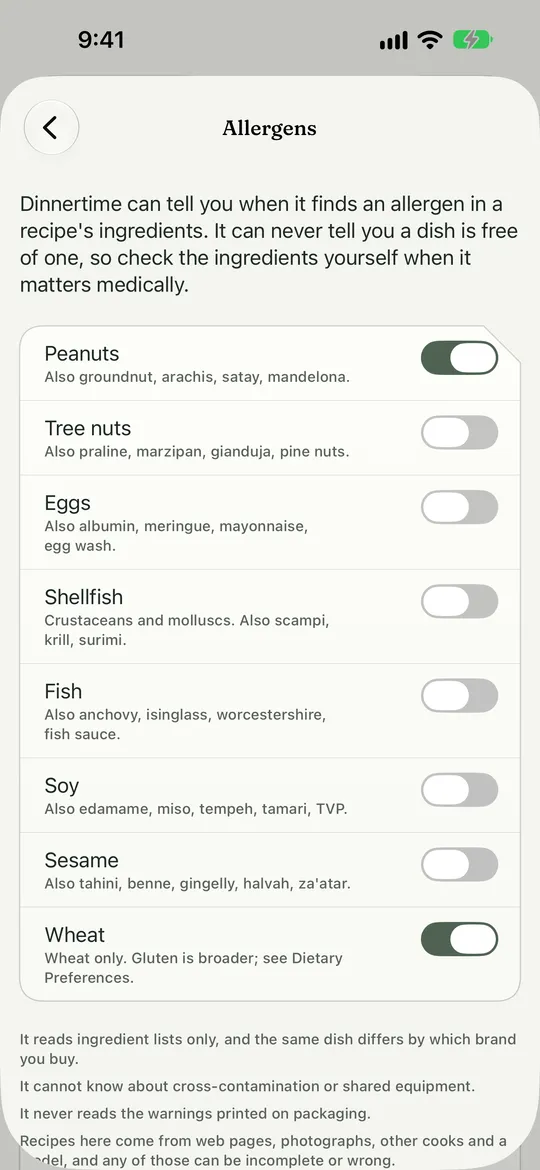
- Dinnertime flags a recipe when it finds one in the ingredients.
- Switch on each of the eight allergens your household avoids.
Calories on Your Dinners Free
You see calories per serving for free, and the week’s calorie and protein total too. Settings › How We Plan › Show calories on the week turns it on or off. The full nutrition label is Pro (see Cook).
Where: Saved recipes, This Week’s dinner cards, and the cook screen
Share the Week Free
Share as a menu for the fridge door, or share for a phone screen. Add your family name in Settings › Your Household › Family name and it prints at the top.
Where: This Week › Share this week (or the top-left menu on This Week)
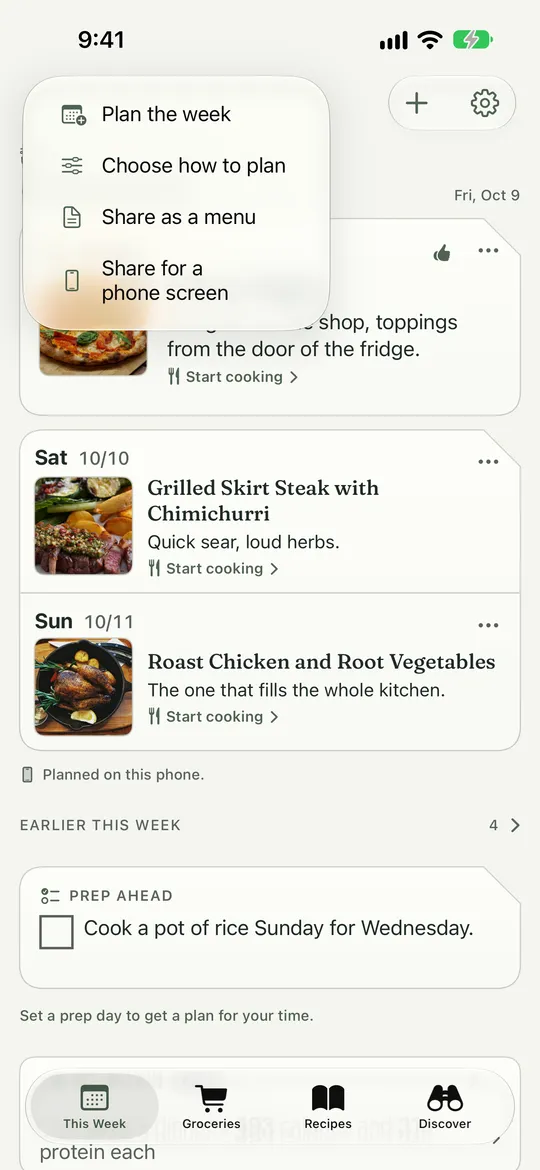
- A menu for the fridge door.
- A picture for a phone screen.
Plan Together
Room for Six Pro
A household holds two people for free. With Pro, it holds up to six. If anyone in the household has Pro, everyone gets the room.
Where: Settings › Your Household › Household
- Everyone in the household, up to six with Pro.
- See who changed what.
See What Changed, and Keep or Swap It Free
When someone crosses off a dinner, the night says who. Tap Keep it anyway to leave it on the week, Pick something else to choose another dinner, or Leave it open. Turn on the notes in Settings › Notifications and News.
Where: The night’s card on This Week, and Settings › Your Household › Household › Recent Activity
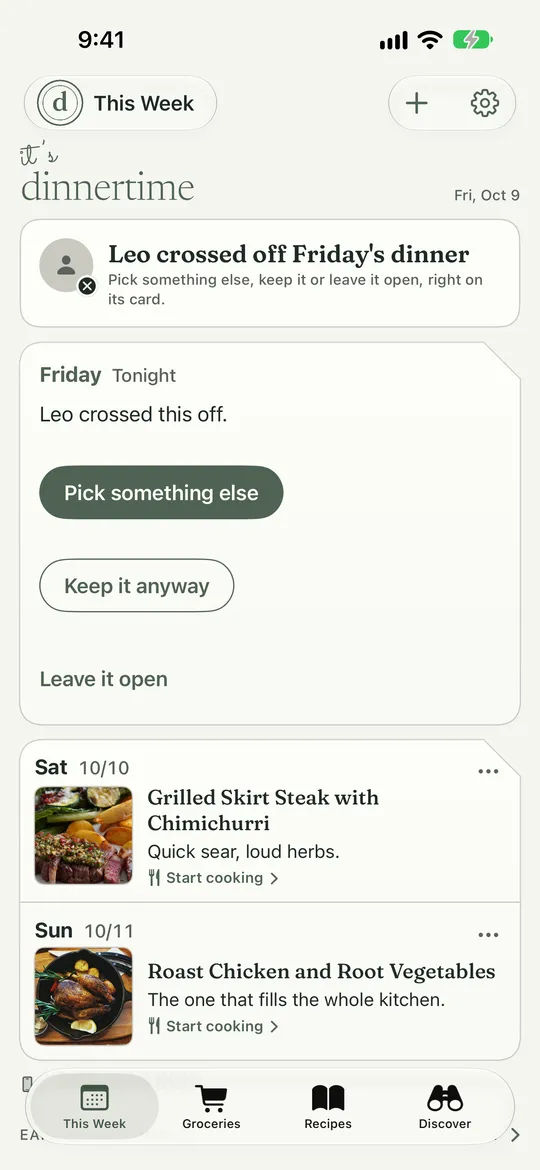
- Read who crossed it off.
- Tap Keep it anyway to leave it, or Pick something else.
Review It Free
Look over the plan someone shared with you and cross off any night that does not work.
Where: This Week › Review it (or the top-left menu › Review the week), when someone else planned the week
Send a Recipe to Someone Free
It lands in their saved recipes with your name on it.
Where: Recipes › a saved recipe › Send to someone
Groceries
Your List Lives in Reminders Free
Dinnertime writes your list into a Reminders list you choose, so you can share it the way you share any Reminders list, and it is there when the app is closed. Group it by aisle, tick things off, or sort by recipe.
Where: Groceries. Choose which lists to use in Settings › Recipes and Lists › Grocery Lists.
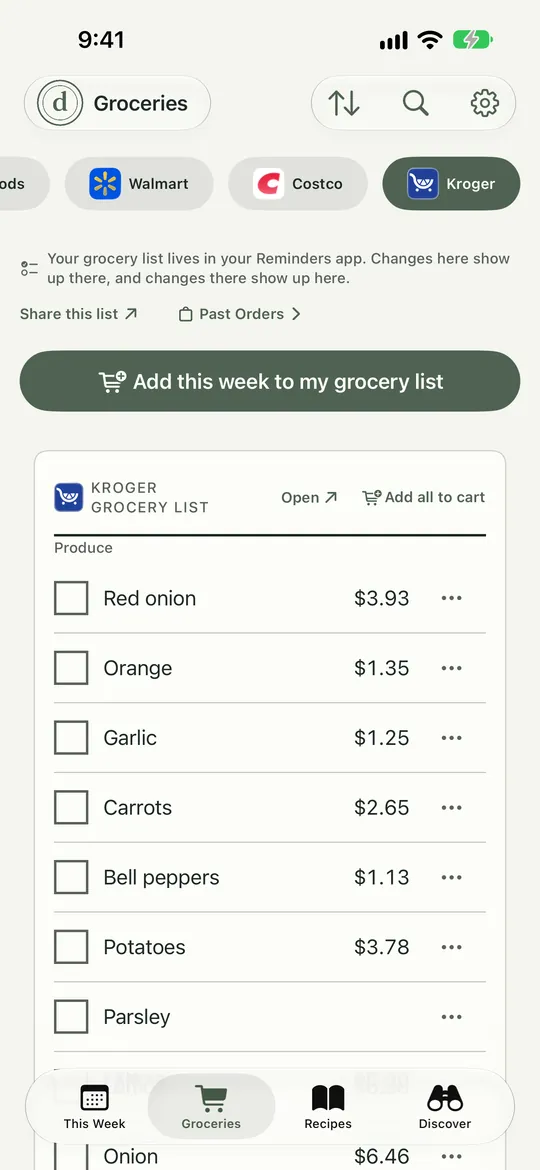
- Each store has its own list. Tap All lists for every store.
- Tap Add this week to add the week's ingredients.
- Group by aisle and tick things off.
Name Your Lists So Dinnertime Finds Them Free
Your grocery lists live in Apple’s Reminders app, and Dinnertime finds them by name. Get the names right once and everything stays in step: add something in either app and it shows up in the other.
Your main list. Call it exactly Grocery List. A name like My Grocery List or Groceries is not picked up on its own. If you have no grocery list yet, Dinnertime makes one when you tap Use Reminders for groceries.
A list for each store. Put the store’s name anywhere in the list’s name, and it gets its own tab in Groceries. Capitals do not matter. Tabs show once you have two or more lists.
| Name it | It shows up as |
|---|---|
| Publix | Publix |
| Publix run | Publix |
| Kroger Grocery List | Kroger |
| walmart | Walmart |
| Whole Foods | Whole Foods |
Dinnertime knows six stores by name: Kroger, Walmart, Costco, Whole Foods, Publix and Albertsons. If you shop at a Kroger-family store like Ralphs, Fred Meyer or King Soopers, name the list Kroger: Dinnertime does not know those names.
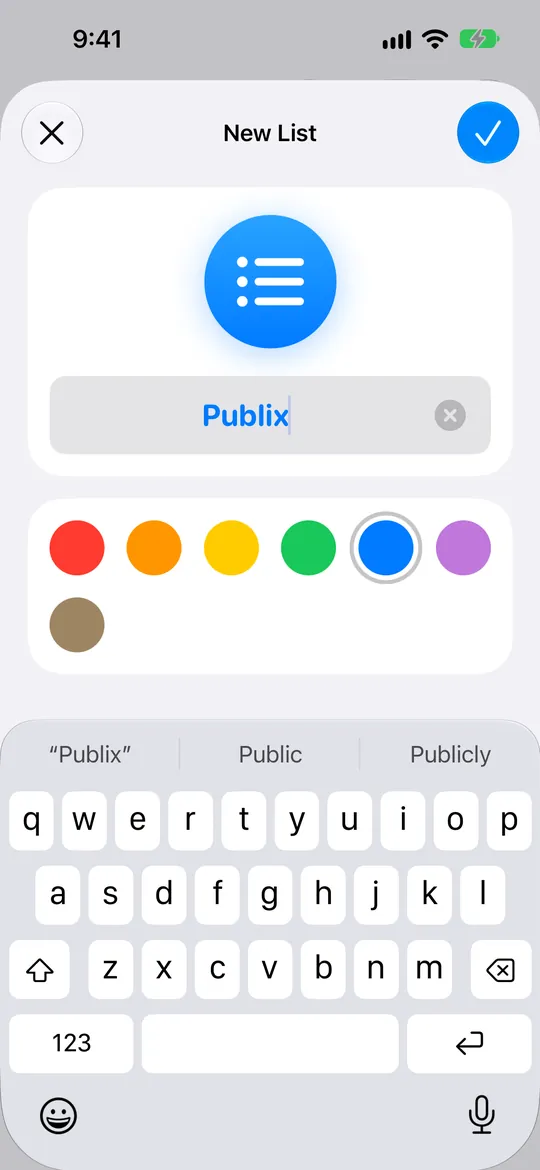
- Type the store’s name, like Publix, as the list name.
A list with any other name. A list called Groceries, Shopping or Aldi is not picked up on its own. Open Settings, then Recipes and Lists, then Grocery Lists, and switch it on. Lists Dinnertime already found by name start out switched on. Once you choose, Dinnertime uses only the lists switched on there, so a new list, even one named Publix, needs its own switch.
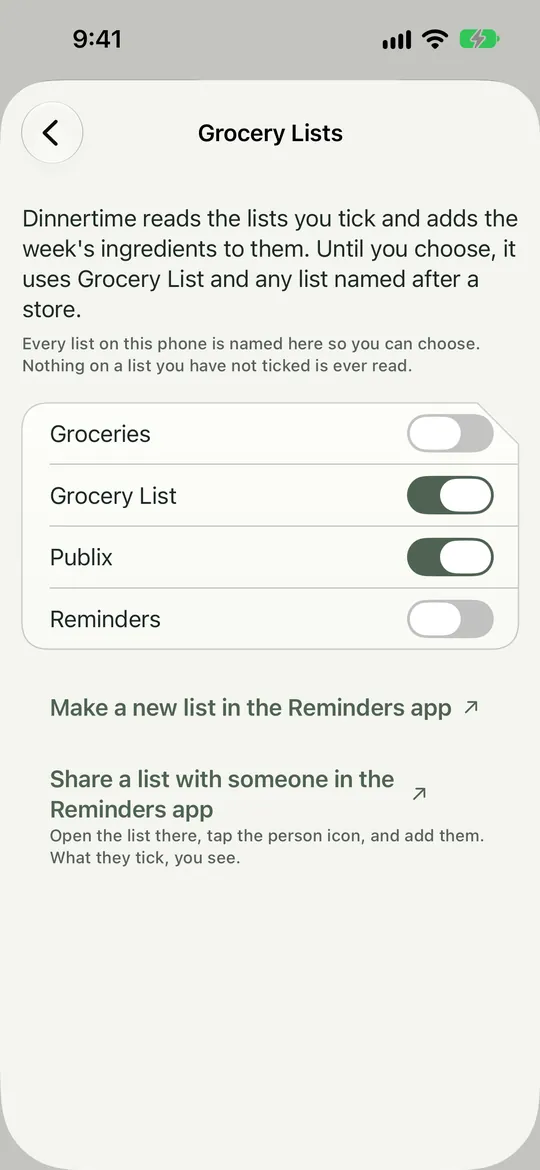
- Each list on your phone has a switch.
Share a list with your partner. Open the list in Reminders, tap the person icon, and add them. What they tick off, you see.
Where: The Reminders app to name a list. Groceries to see it. Settings › Recipes and Lists › Grocery Lists to choose lists with other names.
- In Reminders, tap Add List and name it after your store, like Publix.
- Open Dinnertime and go to Groceries. With two or more lists, each one has a tab at the top, so Publix sits beside Grocery List.
- Add an item in either app. It shows up in both.
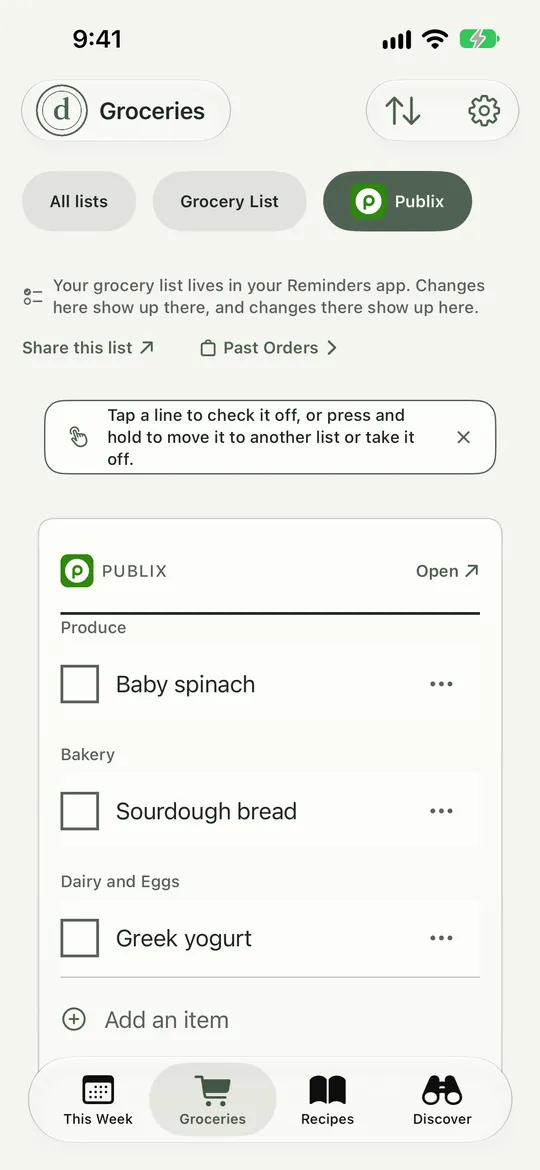
- The Publix tab is selected, with its items below.
Add This Week to Your List Free
Review the ingredients, deselect what you already have, and add the rest to your list.
Where: Groceries › Add this week (or This Week › Add this week to my list)
Store Tabs and All Lists Free
Each store gets its own list. Tap All lists to see every store at once, with its item count, and add an item to any of them.
Where: Groceries, the strip of chips at the top
Prices at Kroger-Family Stores Pro
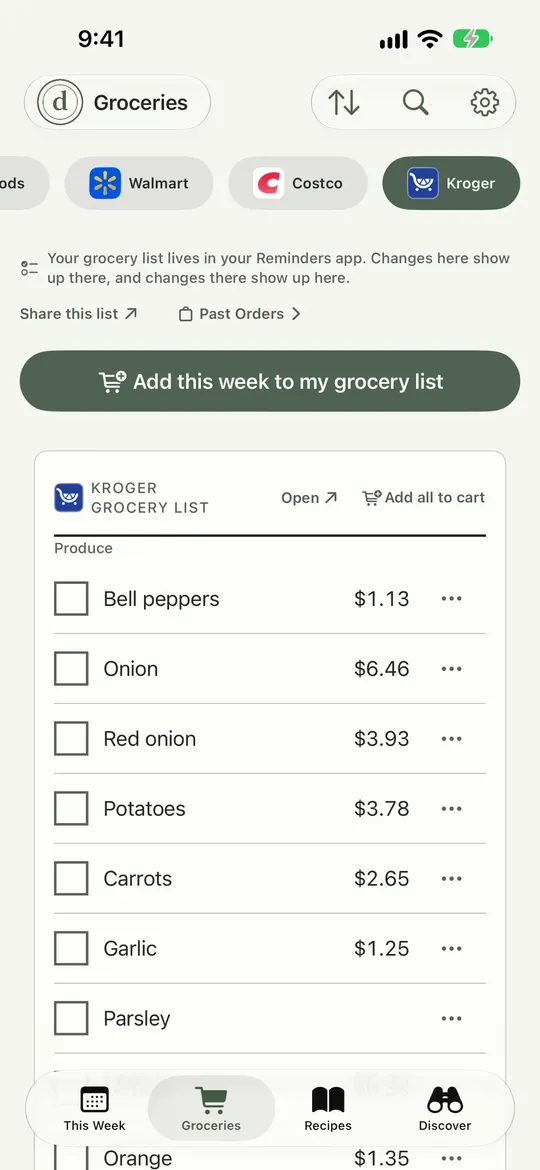
See what the week costs at your store, search for a product, and pick which one a line means. Prices show on each store’s own list, never side by side. It covers Kroger, Ralphs, Fred Meyer, King Soopers, Smith’s, Fry’s, QFC and the rest of the family. If a price is missing, the list still works.
Where: Groceries › your Kroger list, after you pick your store
Prices missing or odd? See Which stores show prices? or ask Support.
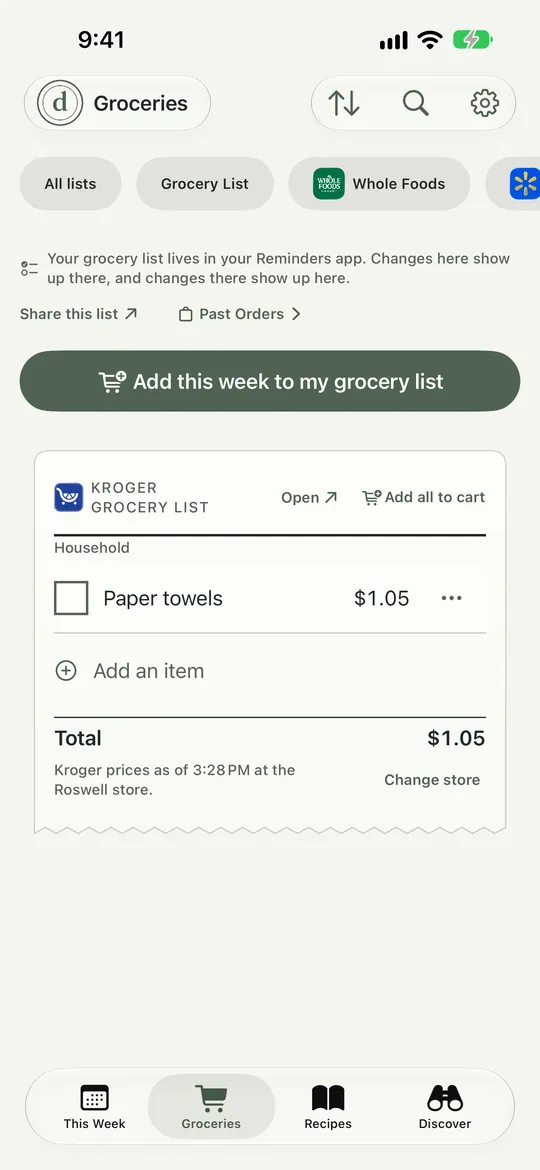
- Prices show on each line.
- Tap Add all to cart, then check out in Kroger's app.
Send Your List to Your Kroger Cart Pro
Connect your Kroger account once, then send the list to your cart for pickup or delivery. You check out in Kroger’s app.
Where: Groceries › your Kroger list › Add all to cart. Also Add this week › Add to list and cart.
Prices at Walmart Pro
Choose your Walmart store and see its prices on your Walmart list: a picture, the size and the price on each line, and a total with the time the prices were read. Tap a line to pick the right product and size from up to eight matches, and Dinnertime remembers your pick. Prices show on each store’s own list, never side by side. Until you choose a store, the list shows Walmart’s national online prices. If a price is missing, the list still works.
Where: Groceries › your Walmart list › Choose your store, then Change store under the list any time
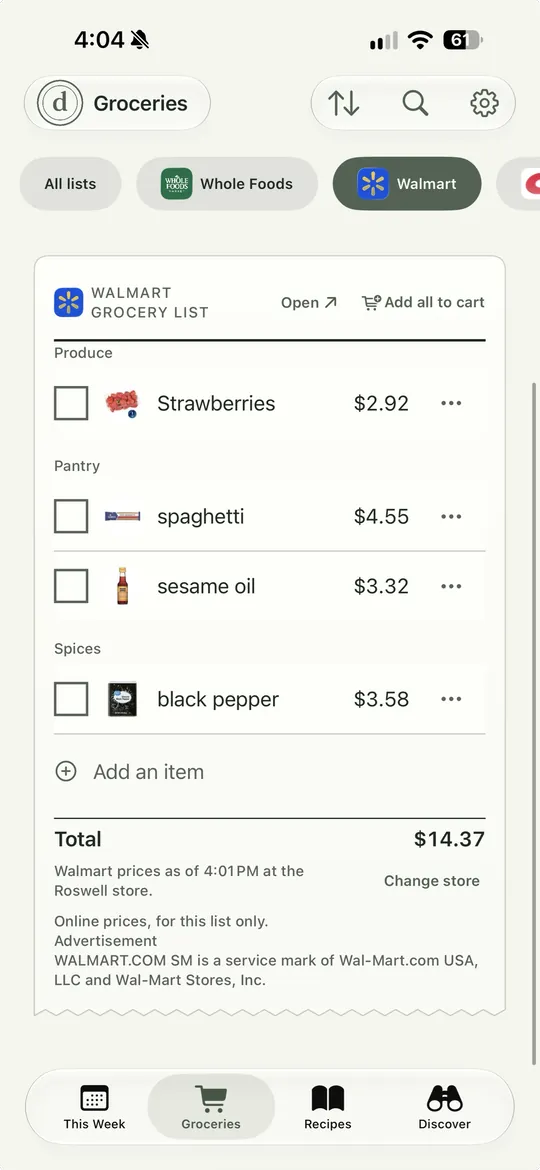
- Prices show on each line. Tap a line to pick another product.
- Tap Add all to cart to open walmart.com, set to your store.
Send Your List to Walmart’s Cart Pro
Add all to cart opens walmart.com, set to your store, with your picked products sent to its cart. You check out on Walmart. There is nothing to sign in to in Dinnertime, and it cannot see your Walmart cart, so look it over there first.
Where: Groceries › your Walmart list › Add all to cart. Also a line’s menu › Add to Walmart cart, and Add this week › Add to list, then send to your Walmart cart.
Scan a Barcode in a Store List Pro
Scan a product to find the matching item and its price at your Kroger-family store or your Walmart. If nothing can be confirmed, it tells you instead of guessing. On a Walmart list you can send the item to your Walmart cart.
Where: Groceries › Scan
Past Orders Pro
See what you bought before, with prices, from your signed-in store accounts. Reading orders happens on your phone.
Where: Groceries › Past Orders, or Settings › Your Stores › Past Orders
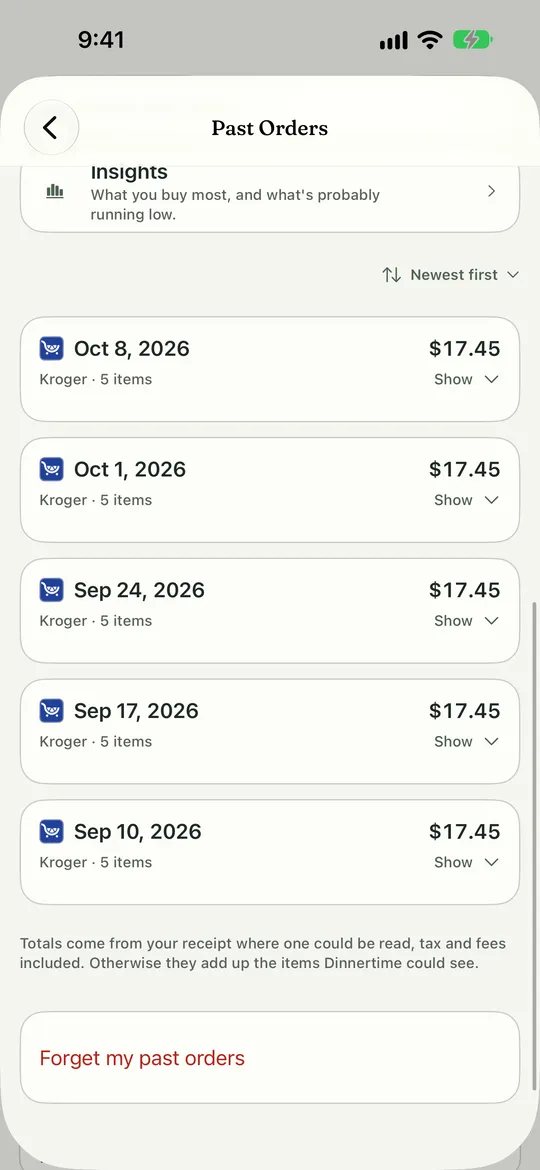
- Open Insights to see what you probably need.
- Forget your orders any time.
What Is Running Low Pro
From your own order history, Dinnertime shows what you buy most and what you are probably out of.
Where: Groceries › Past Orders
Forget Your Past Orders Free
Removes them from your phone and from iCloud. It stays free even if Pro ends.
Where: Groceries › Past Orders › Forget my past orders
Cook
Cook Along Free
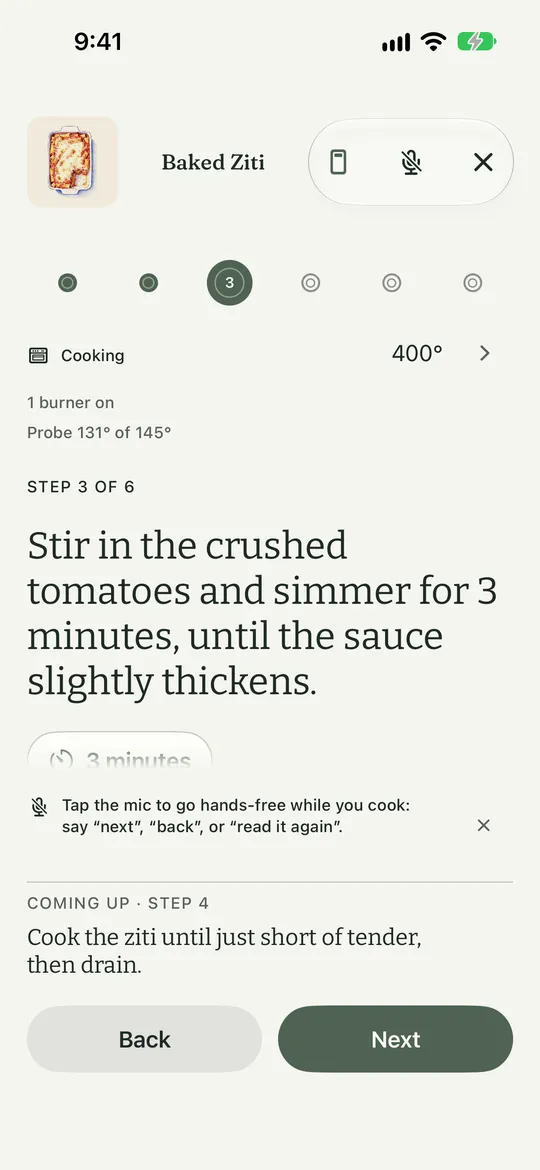
Big steps, one at a time, with the ingredients at hand. Tap Next and Back, or use your voice.
To go hands-free, tap the mic on the cook screen. Dinnertime then listens on your phone, and you do not need to say “Hey Siri” first. Say “next” or “back” to change step, “read it again” to hear the step once more, and “pause” or “stop listening” to turn the mic off. On a step that names a time, “start the timer” works too. It only acts on the last words you say, so a step that mentions “next to the pan” will not move on.
Where: This Week › a dinner › Start cooking
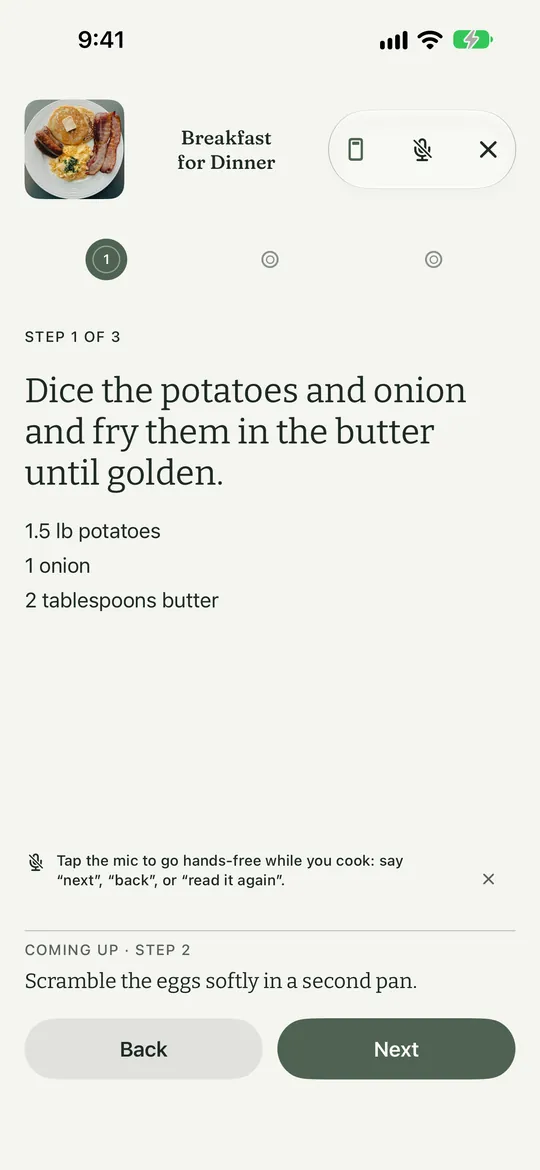
- One step at a time, in big type.
- Back goes to the last step.
- Next goes on. You can say it instead.
Timers and the Lock Screen Free
While you cook, the step you are on stays on your Lock Screen, with the dish and the step that comes next. A step’s timer keeps counting there too. Your colors carry over.
Where: The cook screen, then your Lock Screen and Dynamic Island
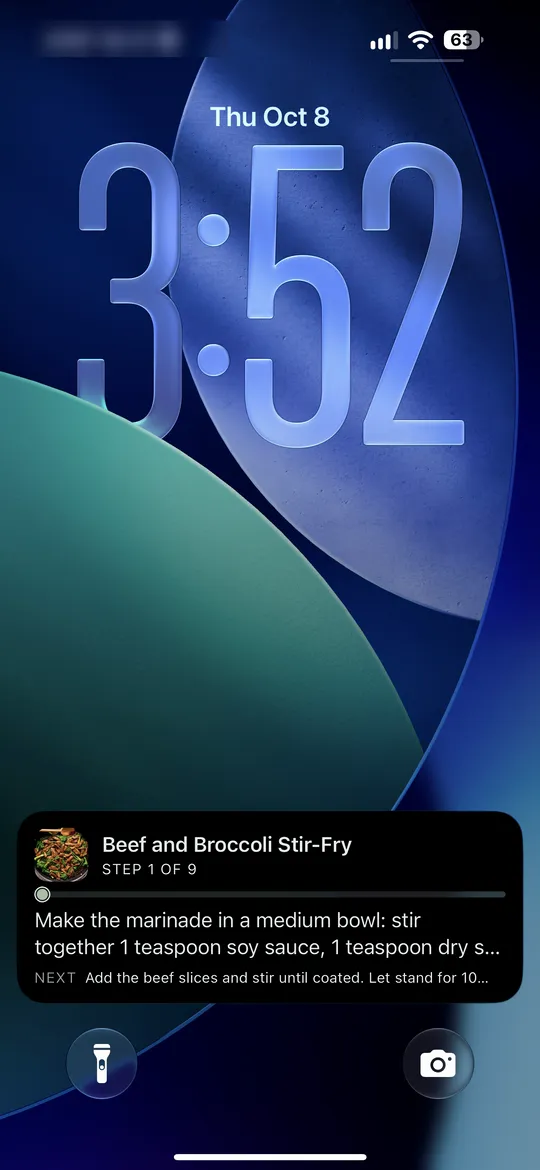
- The dish, which step you are on, and the step that comes next.
Rate It and Add a Note Free
Give it stars, say whether you would make it again, add a note or a photo of your dish. A no keeps the recipe but stops the plan from picking it again.
Where: The end of a cook, “How did it go over?” and “Would you make this again?”
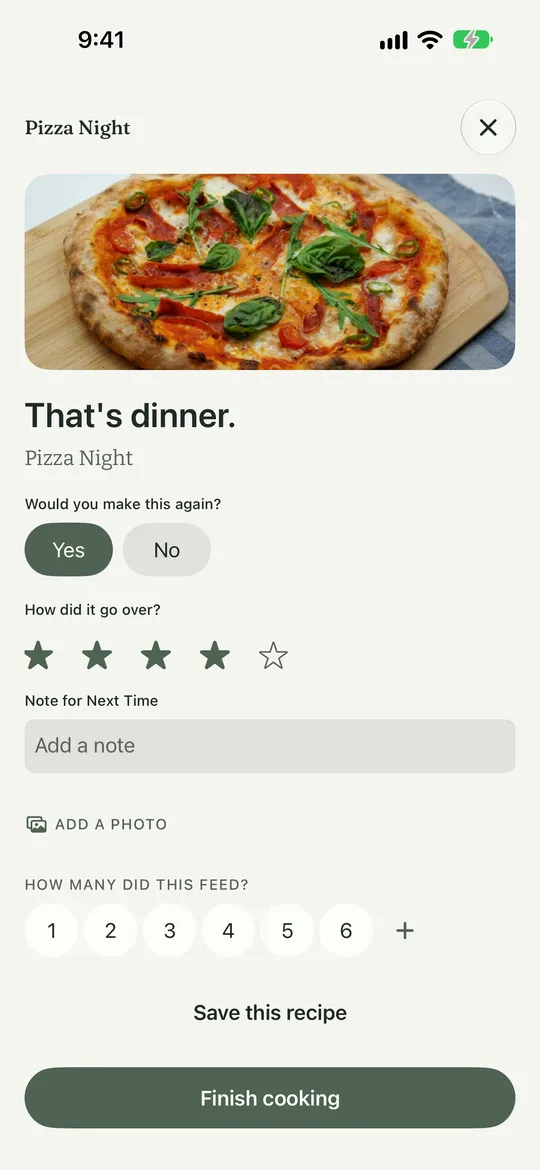
- Say whether you would make it again.
- Give it stars.
- Add a note or a photo of your dish.
Send Cooked Dinners to Apple Health Free
Optional. Each finished dinner’s numbers go to Apple Health.
Where: Settings › Recipes and Lists › Send cooked dinners to Apple Health
The Full Nutrition Label Pro
Every nutrient and percent daily value, for any recipe and for the whole week. Free cooks see a blurred preview. Calories per serving stay free.
Where: The cook screen › Nutrition Facts, and This Week › the week’s numbers
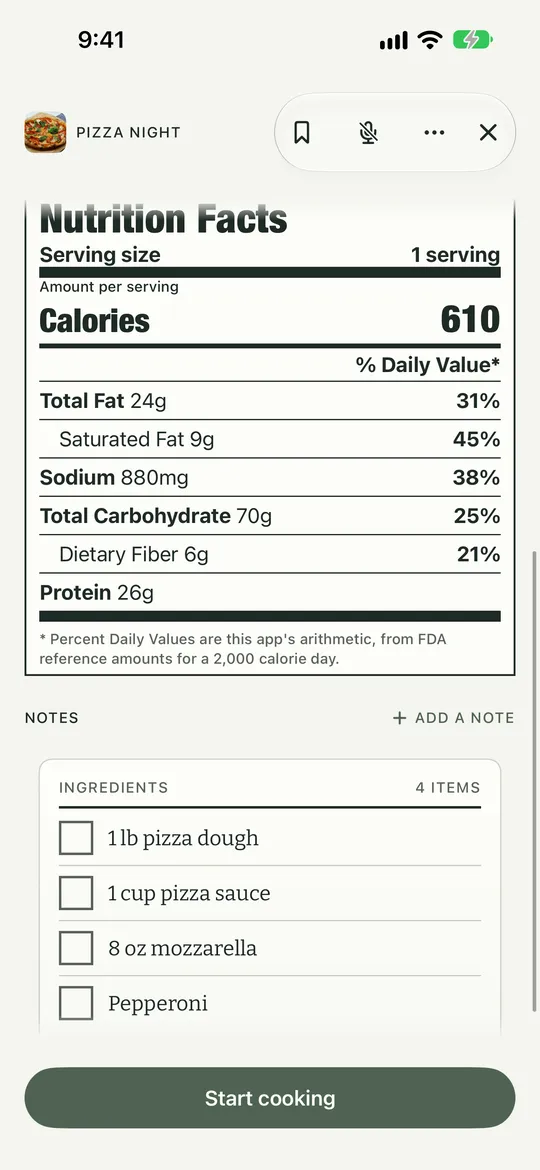
- Calories per serving are always free.
- Every nutrient and percent daily value is Pro.
Your Samsung Oven Pro
Connect a Samsung oven, range or cooktop through SmartThings. Dinnertime shows its temperature while you cook and sends alerts with the app closed: oven on, at temperature, timer done, burner on, left on, door left open. Each alert has its own switch. Dinnertime only reads your oven. It never turns it on or changes a temperature.
Where: Settings › Connected Things › Connections
Oven not showing up? See Can it tell me when my oven is ready? or ask Support.
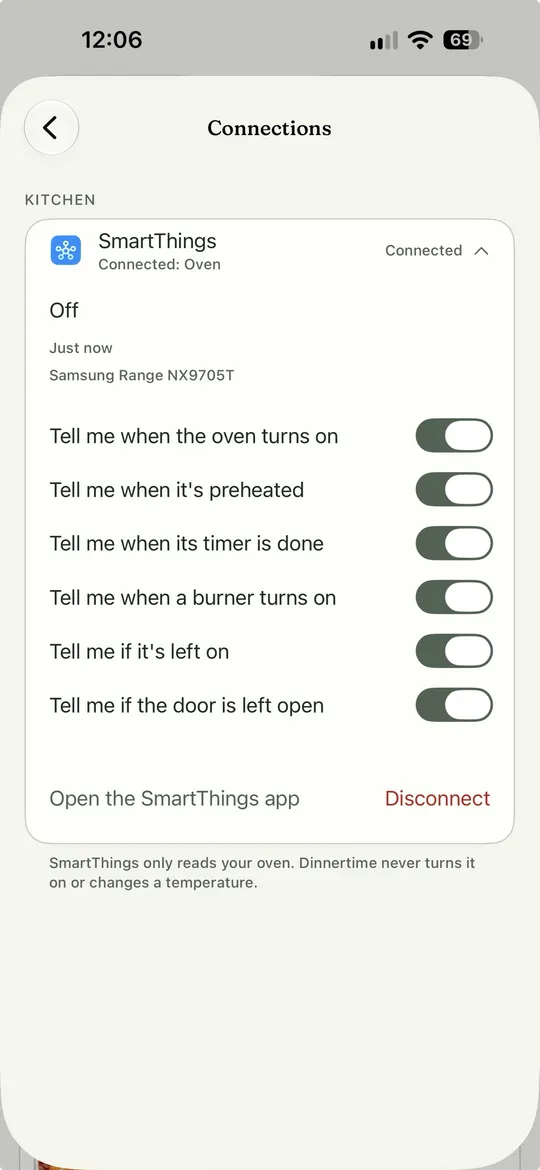
- Your oven shows here once connected.
- Each alert has its own switch.
- Disconnect any time.
Action Button, Siri and Widgets
Add to Your List With the Action Button Free
Press the button, type or say what to add, and pick the store list. It lands on your list even from the Lock Screen. You can choose Last list I used, or Ask every time.
Where: Settings › Action Button and Siri, then iPhone Settings › Action Button › Shortcut
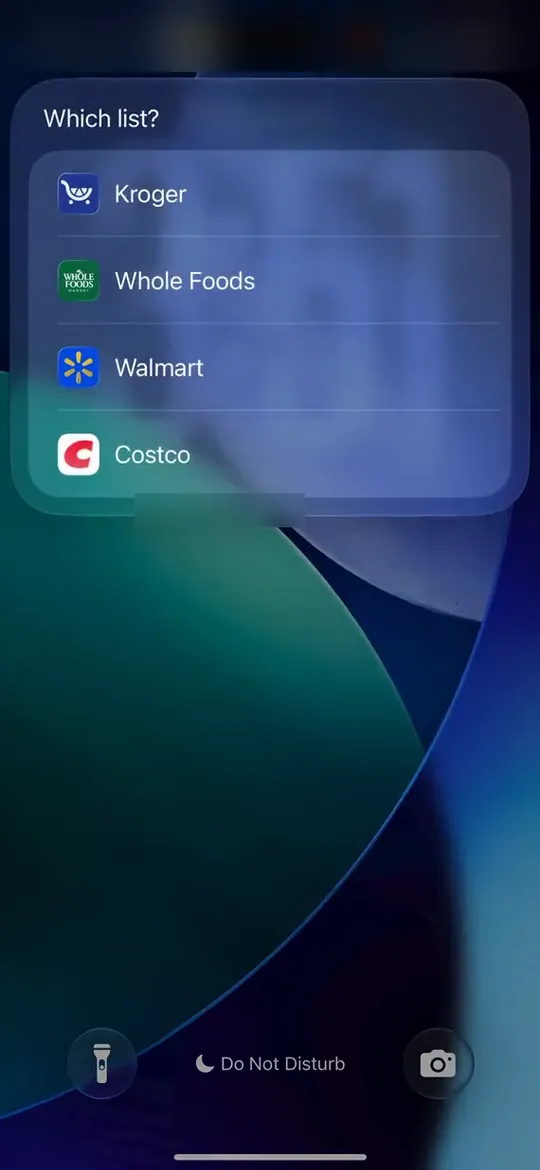
- Press the Action Button and Dinnertime asks which list.
- Tap the store list to add to.
Ask Siri Free
Say “Add eggs to my grocery list in Dinnertime,” “What’s for dinner tonight in Dinnertime,” “Start cooking with Dinnertime,” or “Next step in Dinnertime.” The app does not need to open.
Where: Just say it
Scan an Item to Your List Free
Point at a barcode and the product’s name lands on your list. No store, no price, nothing leaves your phone except the barcode lookup.
Where: Add the Scan an Item control to your Lock Screen or Control Center
Controls and the Lock Screen Free
Add Start Cooking and Next Step as controls. The cook timer and the cooking Live Activity show on the Lock Screen and in the Dynamic Island.
Where: Control Center and Lock Screen, edit controls › Dinnertime
Make It Yours
Colors Free
Pick Sage, Aubergine, Blush or Blue. Each has a light and a dark look. Your widgets and Lock Screen timer follow it, and the Home Screen icon changes to match when you close Settings. Light or dark is in the same place.
Where: Settings › The Look › Color
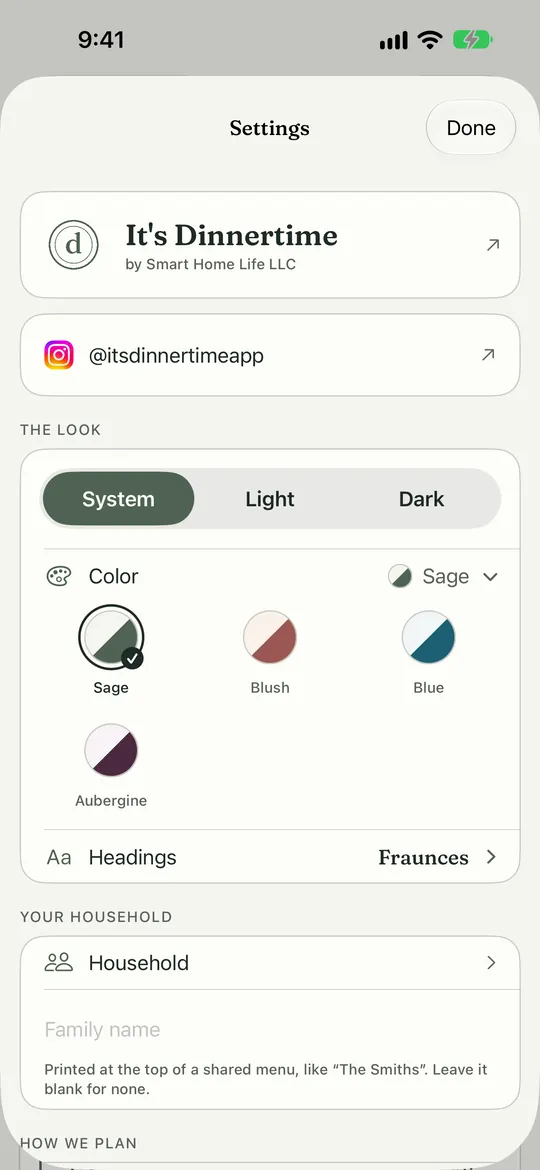
- Pick Sage, Aubergine, Blush or Blue.
- Choose the typeface for dish names and titles.
Headings Free
Choose the typeface for dish names and screen titles: Bitter, Fraunces, Newsreader or Instrument Serif. Recipe steps always stay in Bitter.
Where: Settings › The Look › Headings
Privacy
What Stays on Your Phone
There is no account to make. Dinnertime has no analytics and no tracking. Your recipes, list and week live on your phone and in your own iCloud. A household’s week lives in the iCloud of whoever set it up, and only the people in it can read it.
Where: Settings › Help and Legal › Privacy Policy
What Leaves Your Phone
Planning runs on your phone or in Apple’s private cloud, unless you choose Claude with Pro, which sends the week’s details through our server to Anthropic. A link you paste is fetched from that website, like a browser would. Our service only remembers which stores are near a zip code, for a day. If you connect a Samsung oven for alerts, our service keeps that connection until you disconnect it.
Where: Settings › How Planning Works
Delete Your Data
Remove recipes and photos in the app. Delete the app to clear your phone. Forget past orders any time. To remove an oven connection, tap Disconnect in Settings › Connected Things › Connections. That works with or without Pro.
Where: In the app, and Settings › your name › iCloud › Manage Storage
Dinnertime Pro
What Pro Adds
Pro adds real prices for your list at Kroger-family stores and Walmart, sending it to your Kroger cart or opening your Walmart cart, past orders and what is running low, the full nutrition label, your Samsung oven, planning with Claude, planning around your calendar, and room for six in a household. Everything else in this guide is free.
Where: Settings › Dinnertime Pro
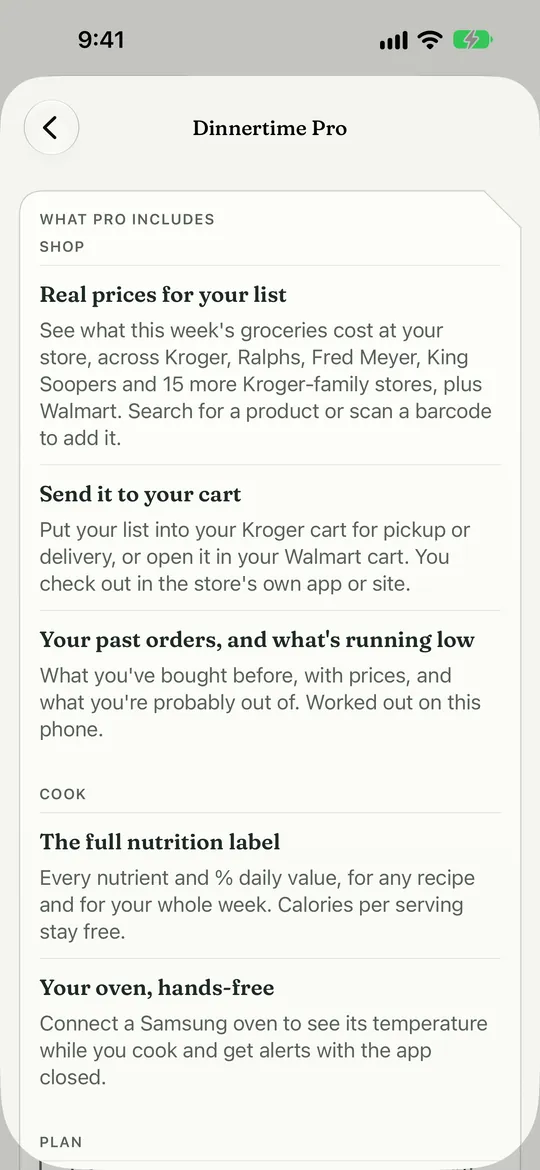
- This list is everything Pro adds. The rest is free.
A Tour of What Pro Adds
This is what each Pro feature looks like once Pro is on. The screens are the real app with sample data, and Room for Six and Planning With Claude have no screen here.
-
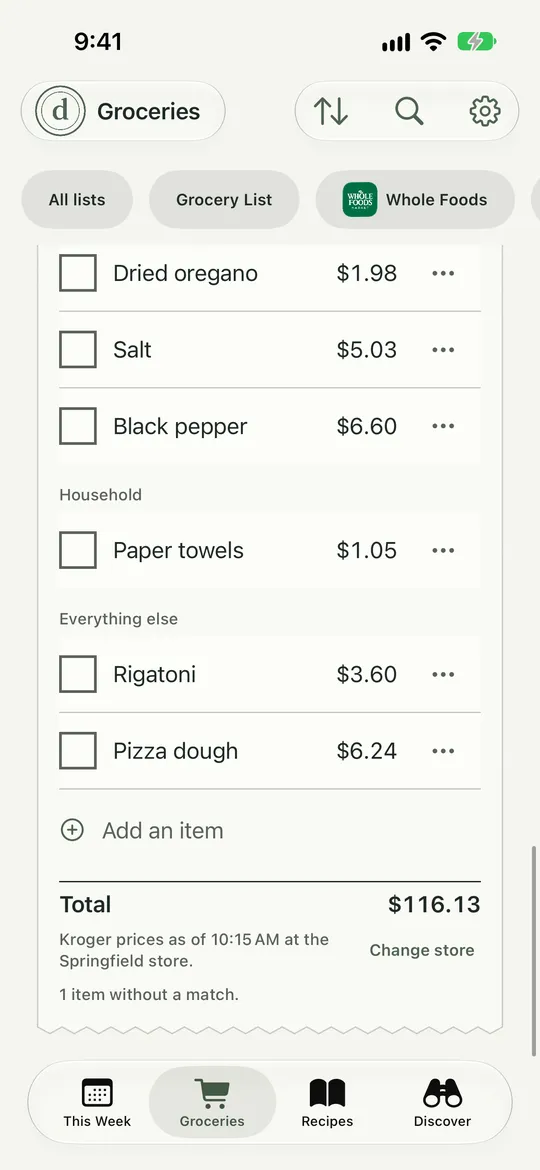
Real Prices on Your List
See what the week costs at your store, with a price on each line and a total at the bottom.
How it works: Real Prices on Your List -
Send It to Your Cart
Add all to cart sends your picked products to your Kroger cart, or opens your Walmart cart.
How it works: Send It to Your Cart -
Past Orders and What Is Running Low
See what you bought before, and what you are probably out of.
How it works: Past Orders and What Is Running Low -
The Full Nutrition Label
Every nutrient and percent daily value for any recipe and for your whole week.
How it works: The Full Nutrition Label -
Your Samsung Oven
See your oven’s temperature while you cook, and get alerts with the app closed.
How it works: Your Samsung Oven -
Pro
Planning With Claude
Claude plans the week with nothing to set up, no account and no key.
How it works: Planning With Claude -
Planning Around Your Calendar
Dinnertime sees your busy nights and offers an easy dinner for them.
How it works: Planning Around Your Calendar -
Pro
Room for Six
A household holds two people for free. With Pro it holds up to six, and everyone in the household gets the room.
How it works: Room for Six
Use Your Own AI Free
Connect your Claude, ChatGPT or Gemini account to plan the week. It is free, and you pay that company directly. The app tells you exactly what goes to that company.
Where: Settings › Connected Things › Your Own AI
Still stuck? Support is a person, the same one who builds the app.